How to record family stories: photo prompts and a writing example
Turn one old photo into a family story with five interview questions, a three-sentence example and a fill-in template. Try writing without an account.
This guide is available in Simplified Chinese and English.
Step 1: turn one photo into a three-sentence story
Fictional example: “This photo shows Grandma in the old kitchen, around 1998. Dad remembers that after the photo was taken, she divided the noodles into three bowls and handed the fullest one to my cousin. When we make those noodles now, Dad still sets out three bowls before he counts who is coming.”
Start with what you can see. Then add what someone remembers and name the person who told you, with their permission. If the date is uncertain, write “around 1998” or “date unknown”. A photo of a meal, a school day or an ordinary afternoon is enough.
- A photograph: who is here, what looks familiar about the place, and what happened after it was taken?
- A familiar saying: who said it, when did they use it, and can you remember the tone?
- A family dish: who prepared it, which step did you help with, and what did people talk about at the table?
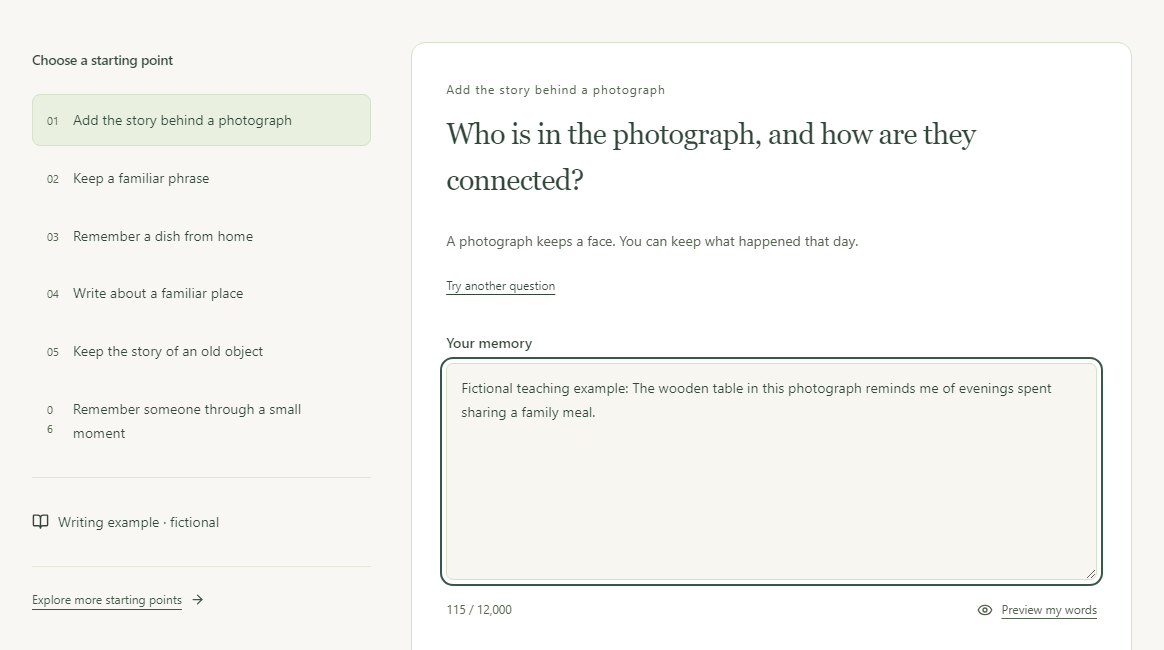
Step 2: five questions to ask about an old photo
Invite a relative to talk about something they are comfortable sharing, and explain who you intend the words or recording to be for. They can skip a question or stop after a short conversation. Check separately before recording, uploading a photograph or sharing the account. Agreeing to talk is not the same as agreeing to publication.
Ask an open question, listen, then follow up on one detail. “How did you get home that day?” can come before “What could you see along the way?” Relatives may remember the same event differently. Attribute their versions instead of trying to select one definitive account during the conversation.
- Who is in the photo, and who might have taken it?
- Where were you, and what do you remember about the place?
- What happened just before or after the picture was taken?
- Is there an object, sound or saying that brings that day back?
- What would you want someone seeing this photo years from now to know?
Step 3: try three sentences, then preview and download
Open the guest writing tool from a prompt without registering. Use one sentence for the setting, one for a specific action or saying, and one for what stays with you. You can preview the result or download a text file, so this first small piece of writing has an outcome of its own.
Copy this template: “This photo shows [person or people] at [place] around [date or season]. [Name] remembers [one action, saying or detail outside the frame]. I want to keep this story because [what it helps me remember].” Leave any unknown detail blank or mark it for a later conversation.
Step 4: confirm the save before adding photographs or recordings
To save trial words to a website account, fill in the relevant details, sign in or register, review the content and explicitly choose to save. New stories begin privately. Treat the account copy as saved only when you see a successful result; a browser draft, a preview and a downloaded file are separate copies.
Later, use the story or memorial editing areas to add photographs, video or audio where those features are available. Add names, approximate dates, places or source notes so someone else can understand the material. The guest writing page is mainly a text tool: it does not automatically recognise, transcribe or turn an uploaded recording into a story.
- Keep original photographs and recordings separately, using a folder named for the person, date or scene.
- You can write your own summary of a recording. Do not present uncertain wording as an exact quotation.
- After editing or changing uploads, check both the save result and the intended audience.
Let the story grow, even if it begins as a few lines
On another visit, you might add just a person’s name, one photograph or another narrator’s version. A small scene is already a record; you do not have to wait until every detail is ready. For other people’s personal experiences, discuss what belongs within the family and what is appropriate to share more widely.
Use the available download or offline-backup tools to keep an independent copy, and actually check that it opens. Family invitations, public display and offline files have different access and storage arrangements. If you want to organise a family memorial together, use the private-sharing guide to choose viewing or editing access.
Common questions
Can I begin without complete information or an exact year?
Yes. Write a few sentences about one scene, use an approximate period or mark the date as unconfirmed. Distinguishing your own memory, a relative’s account and checked information is clearer than filling the gap with a guessed exact date.
Does guest writing automatically save my words to the website?
No. You can preview and download text, while saving to a website account requires sign-in and an explicit save. An optional local draft stays in the current browser; someone sharing that browser may read it, and clearing browser data may remove it.
Can I upload a recording and have the website generate the story?
The current guest writing tool is primarily for text and does not automatically turn recordings into stories. You can first write a few remembered words or a recording summary, then keep relevant media in a story or memorial area that supports it.
How should I organise conflicting family memories?
You can keep separate accounts, name the narrator with permission, note when the account was recorded and mark uncertain details. Agree before sharing someone else’s words. The story does not need to be completed by inventing another person’s memories.
Use one photograph to keep three sentences today
Choose a prompt and describe one specific scene. Preview and download without registering, then sign in and confirm a save whenever you want an account copy.
Sources and review scope
This guide describes current remilumi features and public product information. Check the linked pages for the relevant rules.
- Writing ideas and six starting points — Available prompts, interview questions and clearly marked teaching examples.
- Guest writing tool — The actual preview, text download and explicit account-save workflow.
- Privacy explanation — Account content, visibility, browser drafts and temporary words.
Found a difference between this guide and the current feature? Send feedback or request a correction